

In this tutorial, we are going to build a bare bones Search Application using Apache Lucene and Java Spring Boot. You will learn the basics of a Lucene Search Application by the time you finish this tutorial.
I have also attached the link to the full GitHub code in case you want to dive deeper into the code right away.
What is Apache Lucene?
Apache Lucene is a powerful Open Source Java library with Indexing and Search capabilities. There is also PyLucene with Python bindings for Lucene Core. Our tutorial will be in Java. Several Search Applications that are widely used in the industry today use Apache Lucene behind the scenes. This includes Elasticsearch, Nrtsearch, Cloudera, Github, Solr etc.
In this tutorial, you will learn to set up a simple Search Application using Apache Lucene in Java Spring Boot which is also an open source tool that makes setting up RESTful applications simple and easy.
Components of a Simple Search Application

Indexer
Inverted Index
Apache Lucene can perform fast full-text searches because of indexes that are built as Inverted Indexes. This is different from a regular index and for each term that appears in a pool of documents, the document ID and the position of that term in the document is stored. This list of doc IDs and positions is called a Postings List. The diagram below shows an example with only the doc IDs for each term. This allows fast look up during query time.

Lucene Indexer
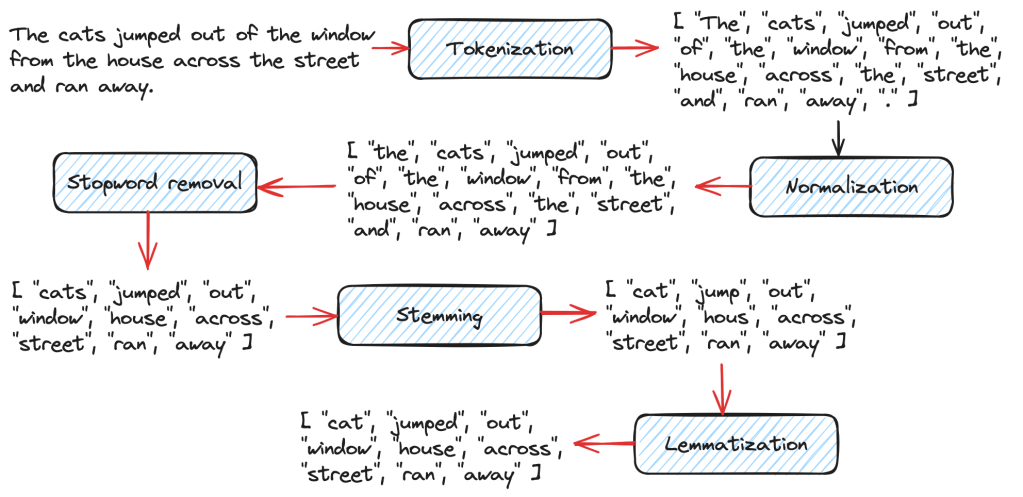
The Lucene Indexer does a list of steps to convert raw text documents into Inverted Indexes. These include text analysis, splitting the text into smaller tokens and other processing such as stop words removal, lemmatization etc. There are several Analyzers available in Lucene based on user and language needs. In this tutorial, we will be using the Lucene StandardAnalyzer.
We will create a Lucene Document object which gets stored in Lucene Indexes from the raw text files. A Search Query in Lucene returns a set of Documents as the result. A Document contains a collection of Fields where each Field is a combination of Field name and a value that can be retrieved at search time using a Query.
In the code example below, we declare the path to the Index Directory. This is where the index files get stored. The Index Directory is a normal file system location on the local device and you will see it being created at the mentioned path once you run the indexing method. We initialize an IndexWriterConfig instance with a Lucene StandardAnalyzer and create an IndexWriter to index all the documents.
Directory indexDirectory = FSDirectory.open(Paths.get(INDEX_DIR));
IndexWriterConfig indexWriterConfig = new IndexWriterConfig(analyzer);
IndexWriter indexWriter = new IndexWriter(indexDirectory, indexWriterConfig);

// The file can be indexed using the IndexWriter as follows.
indexDocument(indexWriter, file);

// Method where the file contents get converted to a Lucene Document object before being indexed.
private void indexDocument(IndexWriter indexWriter, File file) throws IOException {
    Document doc = new Document();
    doc.add(new StoredField("fileName", file.getName()));
    doc.add(new TextField("fileContent", new FileReader(file)));
    indexWriter.addDocument(doc);
}
We map the indexing method to the path /index in our Spring Boot Application running on localhost:8080 which will produce the following output when indexing is done. Only 5 static files are used as Documents to keep things simpler. So this is a GET method in the code example.

Query
Query is the user-facing component of Lucene. A user can send any type of Lucene Query such as a BooleanQuery, TermQuery, PhraseQuery, PrefixQuery, PhraseQuery, FuzzyQuery etc. For our example, we are using a simple Lucene TermQuery.
A TermQuery consists of a field name and a value. Lucene will return the Documents that contain the specific term. The example below from the GET request that is sent to the search application contains the following components.
- TermQuery – type of Query to map the Search Request to.
- maxHits – the maximum number of documents to return for the result.
- fieldName – the name of the Document Field
- fieldValue – the specific Term to search for in the Lucene Documents.
body: JSON.stringify({
    "type": "TermQuery",
    "maxHits": 4,
    "fieldName": "fileContent",
    "fieldValue": "lucene"
})
We will convert the above Json Query into a Lucene TermQuery using a simple method as shown below.
public Query parseJsonToQuery() {
    return new org.apache.lucene.search.TermQuery(new Term(fieldName, fieldValue));
In this example, we want Lucene to return all Documents (maximum of 4) that contains the term “lucene” in the “fileContent” Field.
Searcher
Searching in Lucene is the process where a user Query is sent as a search request using the Lucene IndexSearcher. See below for the example.
- IndexSearcher – used to search the single index that we created in the above step.
- Query – the JSON request is parsed into a TermQuery in this case based on the specified type.
- maxHits – the maximum number of Documents to return in the search response.
- ScoreDoc[] – The indexSearcher.search() method returns a list of hits called TopDocs which are the Documents that satisfy the given Query. ScoreDoc contains the doc ID of the hit and the Relevance Score that was assigned by Lucene based on the match criteria of the Documents to the given Query.
@RequestMapping(
    value = "/search",
    method = RequestMethod.POST,
    produces = "application/json; charset=utf-8",
    consumes = MediaType.APPLICATION_JSON_VALUE)
public List<String> search(@RequestBody SearchRequest searchRequest) throws IOException {
    List<String> results = new ArrayList<>();

    Directory indexDirectory = FSDirectory.open(Paths.get(INDEX_DIR));
    IndexReader indexReader = DirectoryReader.open(indexDirectory);
    IndexSearcher indexSearcher = new IndexSearcher(indexReader);

    Query query = searchRequest.parseJsonToQuery();
    int maxHits = searchRequest.getMaxHits();

    ScoreDoc[] hits = indexSearcher.search(query, maxHits).scoreDocs;
    for (ScoreDoc hit : hits) {
      Document doc = indexSearcher.doc(hit.doc);
      results.add(doc.get("fileName"));
    }
    return results;
}
The /search POST request looks something like this.
fetch('http://localhost:8080/search', {
    method: 'POST',
    headers: {
        'Content-Type': 'application/json'
    },
    body: JSON.stringify({
        "type": "TermQuery",
        "maxHits": 4,
        "fieldName": "fileContent",
        "fieldValue": "lucene"
    })
})
.then(response => response.json())
.then(data => console.log(data))
.catch(error => console.error('Error:', error));
To send requests like this to our Spring Boot Application,
- Go to localhost:8080 on the browser
- Right click and choose Inspect
- Go to Console, paste the above code and click Enter.
Alternatively, you can also send CURL requests from your terminal. Examples are linked in the readme document of the Github Repo.
You should see some results as shown below in the Console. Document 2, 5, 4 and 1 were the top ranked results by Lucene.

The full code can be found on my Github. I highly recommend that you take a look to understand this tutorial well. Feel free to download the project and add more capabilities to your Search Application. One idea is to add support for more types of Lucene Queries.
Hope you enjoyed reading this tutorial on setting up a Simple Lucene Search Application using Java Spring Boot. See you in the next blog post!






 That Girl Coder